
HYPER-REALISTIC FABRICS
FOR YOUR NEXT RENDER.
Designed for interior designers, 3D artists, and visual creatives who
want inspiration that looks as real as the final render.
The plugin requires 3ds Max's latest version.
3Ds Max 2025 (v27) | 3Ds Max 2026 (v28) | 3Ds Max 2027 (v29)
WHY DESIGNERS LOVE THESE DIGITAL FABRIC TEXTURES

Instant visual transformations
Build complete, photoreal interior scenes and explore multiple fabric directions in minutes.
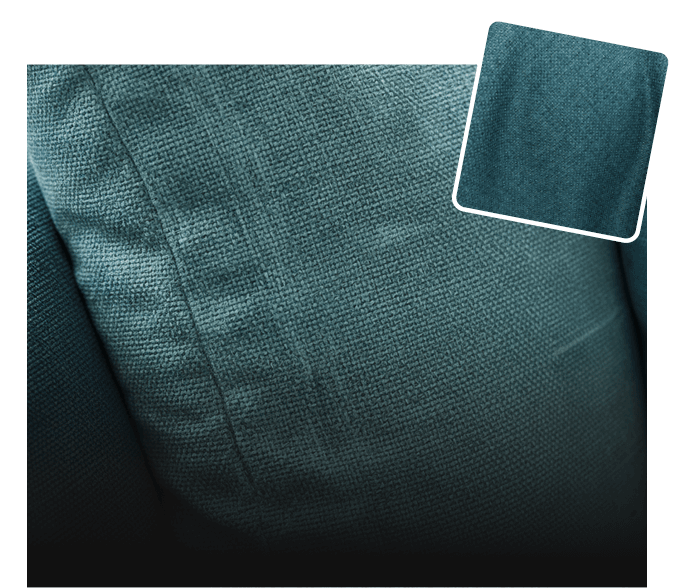
Photorealistic detail that holds up
Textures capture real weave, depth, and light response — even in close-up shots.
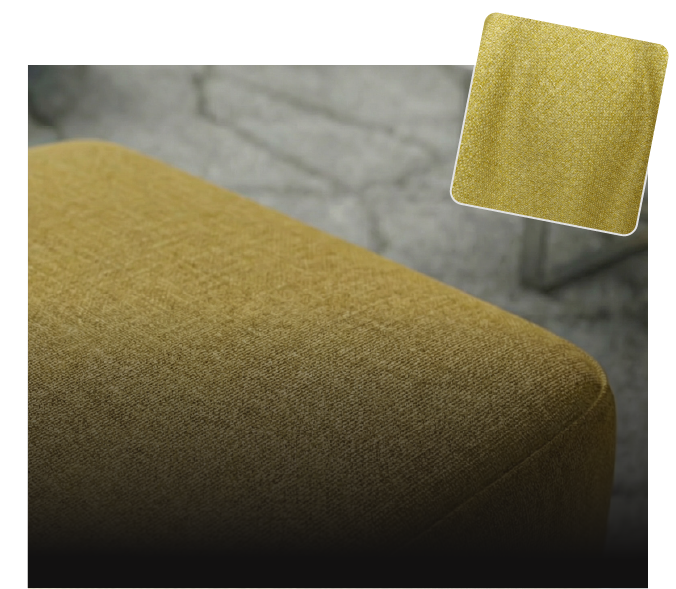
Built from real interior fabrics
Every fabric is digitised from physical FibreGuard materials, not synthetic presets.
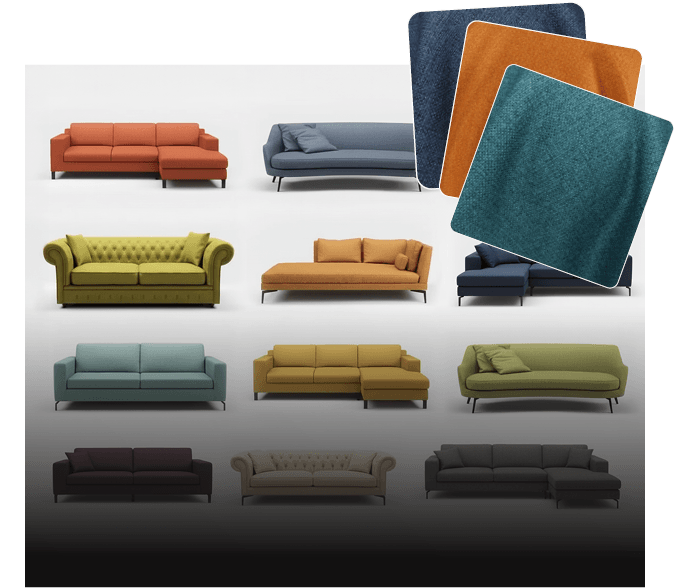
Explore different looks freely
Quickly swap fabrics to test different styles and moods until the look feels right.
Make confident material choices
See how fabrics actually behave in a space before committing to a direction.

GET THE FREE PLUGIN FOR 3DS MAX
ONE SCENE. ENDLESS LOOKS.

From one room to many moods
A single interior scene can transform into multiple fabric identities clean, bold, soft, dramatic.

Realism you can feel
These textures behave like real fabrics, so changes feel natural, cohesive, and intentional.
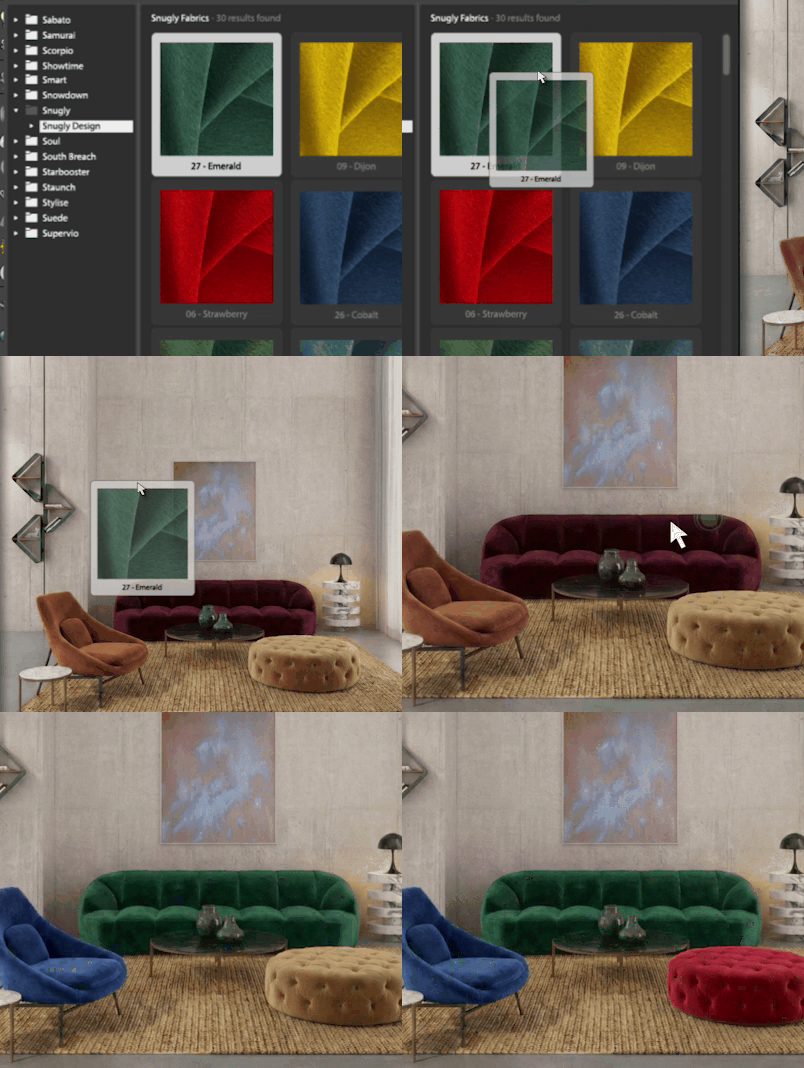
Design with flow, not friction
When fabrics are ready to render, creativity stays uninterrupted.

GET THE FREE
PLUGIN FOR 3DS MAX

REAL FABRICS. REAL RESULTS. REAL FAST.
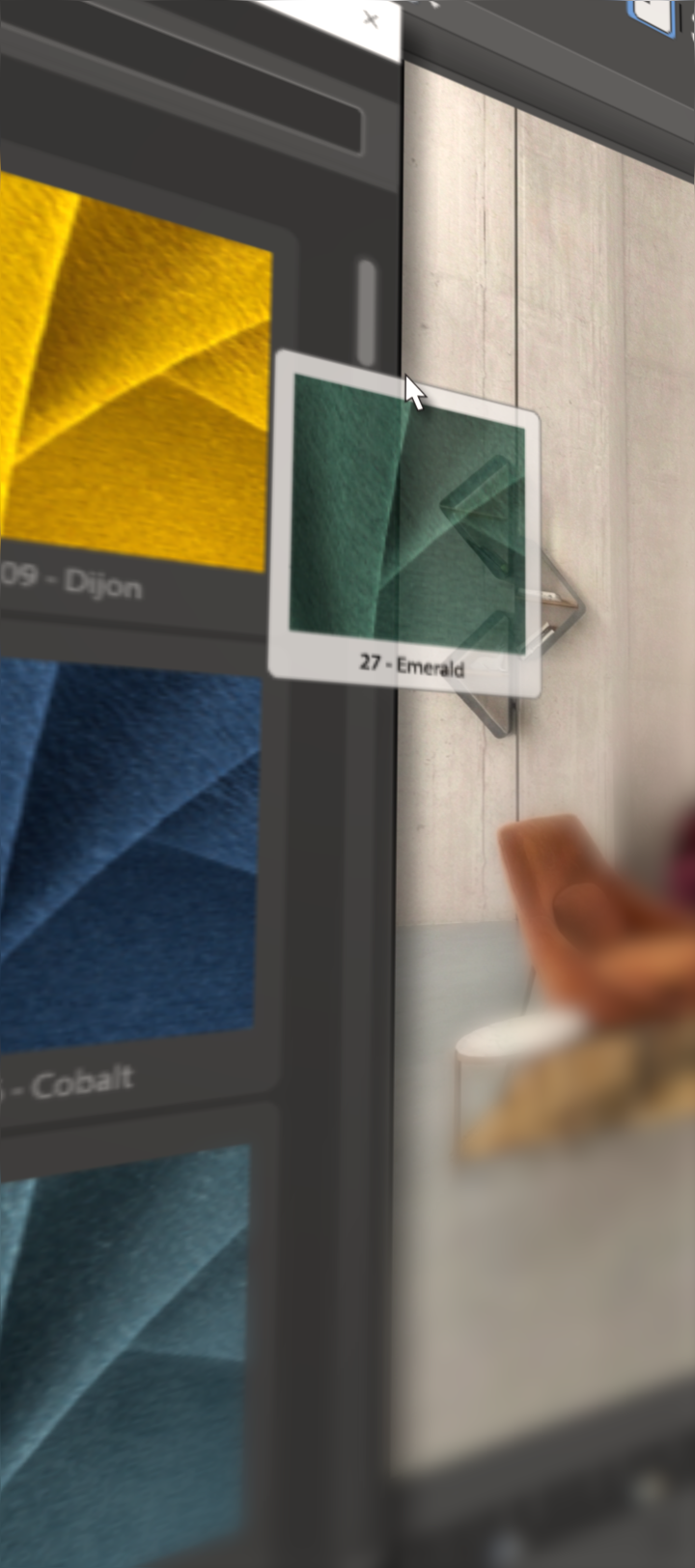
Hundreds of photoreal interior fabrics
Scanned, calibrated, and optimised for 3D accuracy.
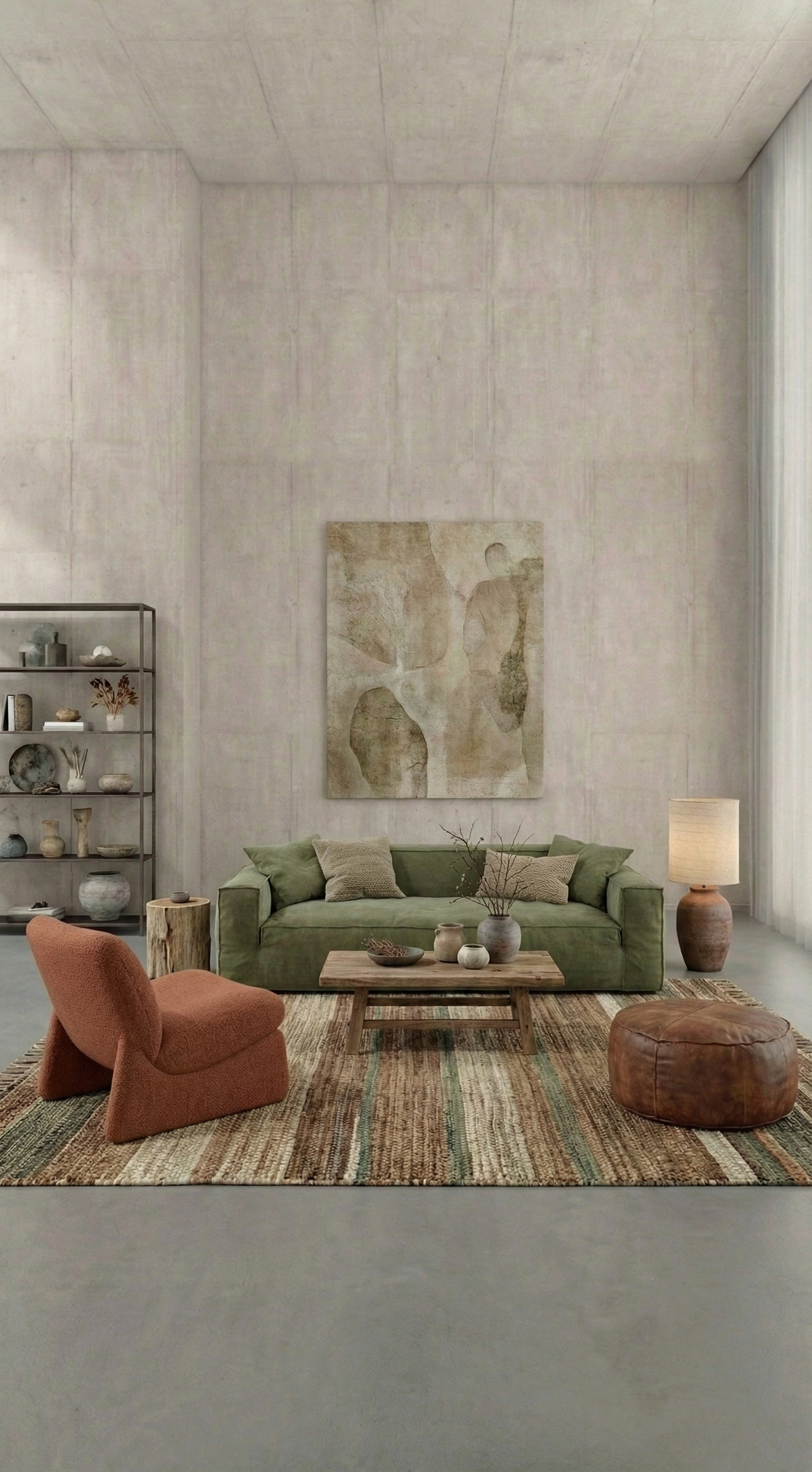
Digitised and calibrated for realism
Swap looks for clients in seconds, not hours.
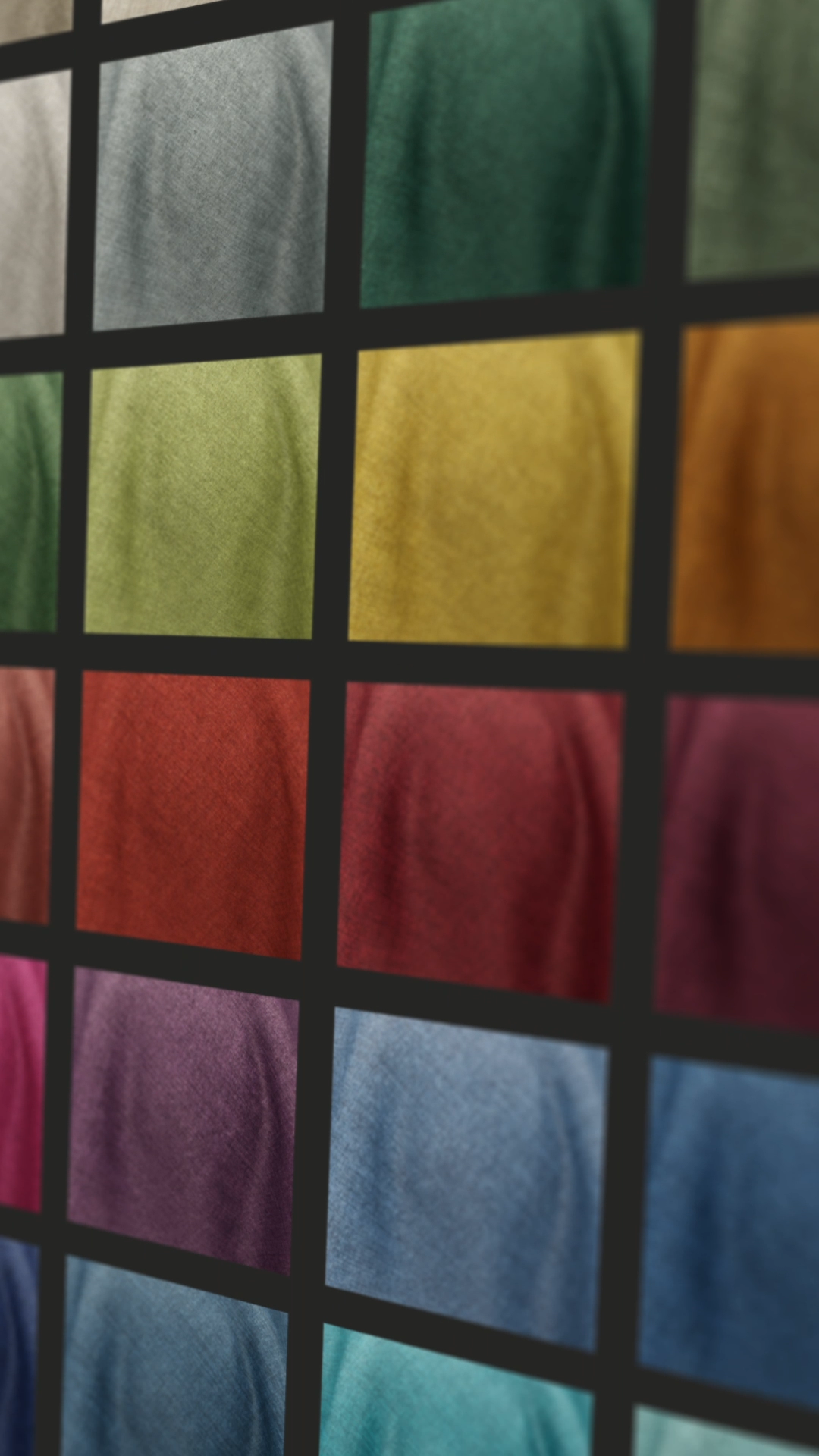
Made for 3ds Max workflows
Compatible with leading 3D and rending engines.
Common questions
1. Installation instructions
- Install
Run the installer and follow the on-screen steps. Once installation is complete, restart 3ds Max to activate the plugin.
- Restart 3Ds Max
Once the installation has completed, restart 3ds Max. The Twinbru toolbar button will appear in your main toolbar.
- Open the fabric library
Open the FibreGuard plugin in 3ds Max to access a growing library of real interior fabric textures for sofas, chairs, curtains, and upholstery.
2. Where are my downloaded fabrics stored
All textures are stored in a hidden folder in your user profile:
%USERPROFILE%\.brutex\3dsmax\
Each fabric has its own subfolder named by its reference number (SKU). For example, fabric 27321 is stored in .brutex\3dsmax\27321\.
3. Do I need to log in
No, the Twinbru plugin does not require a login or account. The full catalogue is available immediately after installation.
4. What 3ds Max versions are supported
The plugin supports 3ds Max 2025 and newer. It requires Python 3, which ships with 3ds Max 2025+. Older versions are not supported
5. Can I use this with renderers other than V-Ray and Arnold
V-Ray and Arnold have full, tested support with automatic material creation. Other renderers that support MaterialX may work but are not officially supported at this time.
6. How do I update the plugin
Go to the Settings tab in the plugin panel. Click "Check for Update". If an update is available, click the update button to install it. You can also enable daily auto-checks. After updating, restart 3ds Max.
7. How do I change the default download resolution
Open the Settings tab and look for the resolution preference. You can set the default to 1K, 2K, 4K, or 8K. You can also override the resolution per-download using the size dropdown on each fabric card.
8. A fabric shows "Download" even though I already downloaded it
The plugin verifies that all texture files referenced in the .mtlx file exist locally. If any file is missing or corrupted, the fabric reverts to "Download" state. Try redownloading: right-click the fabric and select "Redownload".
9. Where can I find log files for troubleshooting
Plugin logs are written to:
%USERPROFILE%\.brutex\3dsmax\logs.log
3ds Max's own log is at:
%LOCALAPPDATA%\Autodesk\3dsMax\2025 - 64bit\ENU\3dsmax.log
Include both when contacting support.
10. How do I completely uninstall the plugin
Delete the plugin folder from 3ds Max packages directory
Optionally delete the %USERPROFILE%\.brutex\ folder to remove all downloaded fabrics and settings
Restart 3ds Max

DESIGNS IN DAYS, TO DESIGNS IN MINUTES
Get access too hundreds of ready-to-render, photorealistic interior fabrics,
for free.